Restore / stains
Remove Stains from Old Photographs Online
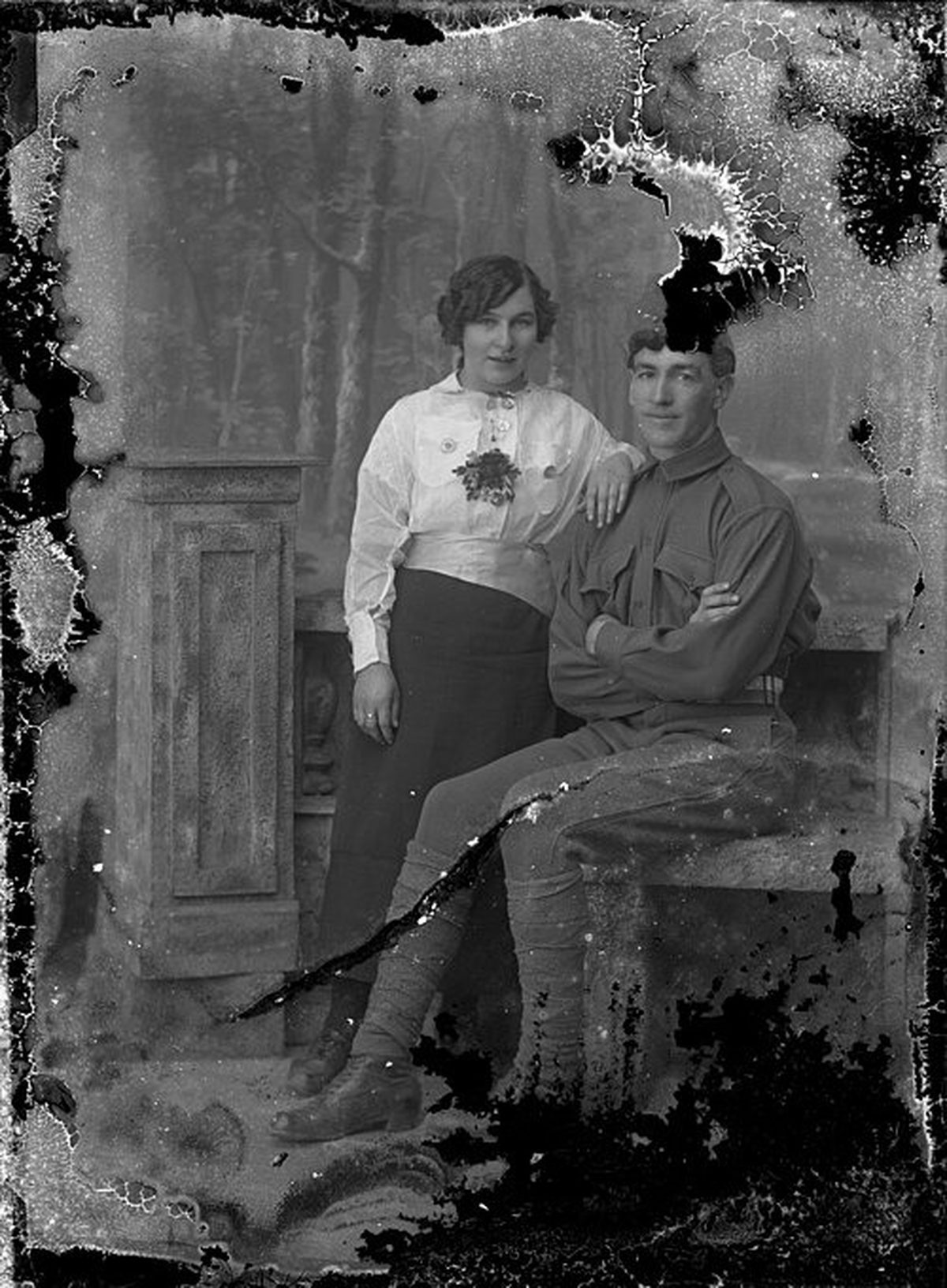
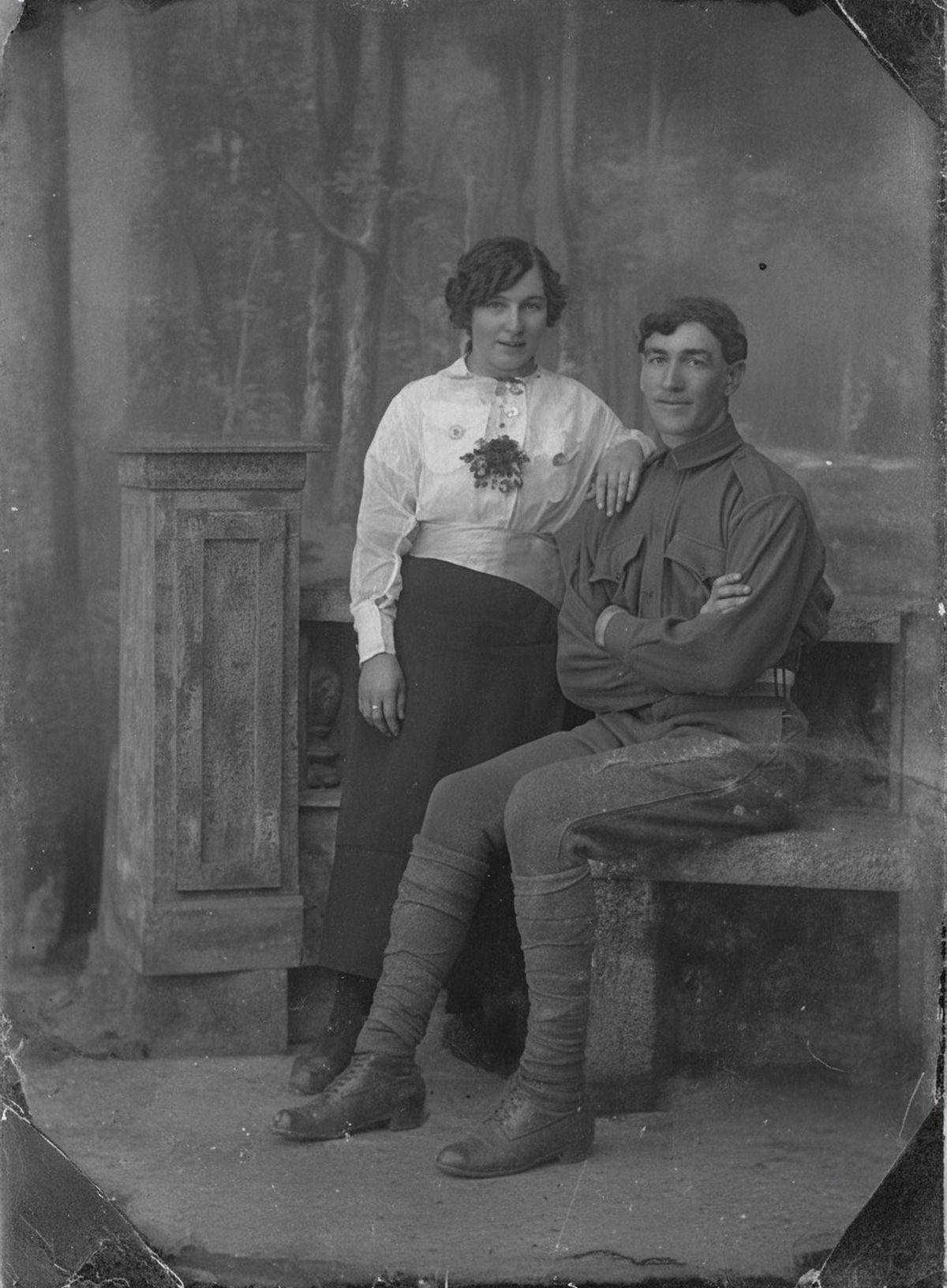
Digital restoration can map uneven discoloration, rebuild pattern through small spots, and bring the overall paper color back into balance. Opaque ink or adhesive over a face has replaced original information. Any repaired expression or fine feature is a reconstruction, not documentary proof. Keep the untouched scan beside the result.
- 3 free previews a month
- No signup
- Ready in minutes
- One payment — nothing to cancel
How it works
Upload your photo
Drop in a scan or phone photo of the damaged print. Your original is never touched, and there's no signup.
Preview it free
See the restoration beside your photo in about a minute. Drag the slider and judge it for yourself before you spend a cent.
Keep what you love
Pay only for the results worth keeping, then download them in full resolution.
Preview your photo — freeWhat to know before restoring this photograph
"Stain" covers half a dozen different substances, and they do not behave alike. Foxing — the rust-brown freckling on old paper — is driven by mold activity and iron impurities in the sheet. Nicotine settles as an even amber film. A spilled drink leaves a ringed tide mark. Adhesive shadows from old album corners brown quietly in place, and decades-old fingerprints etch in as skin oils slowly react with the emulsion.
The useful question for each mark is whether it sits on the image or has altered it. A translucent tint rides above detail that still exists; an opaque blot of ink or glue has replaced the detail underneath; a chemical stain may have changed the emulsion itself, partway between the two.
Scan in full color at 600 dpi even for a black-and-white print — the stain's exact hue helps the correction separate it from the picture. Keep a little of the unprinted border in the frame as a reference for the paper's true tone, and never wet-clean or scrub the original first.
The AI then maps the uneven discoloration, rebuilds pattern through small spots, and settles the overall paper color back into balance, so foxing freckles and tide rings stop competing with the subject. It works from the color evidence in the scan, which is why the full-color capture matters.
Translucent marks over faces usually lift with the face intact underneath — that is this repair at its best. An opaque blot over the same face is a different case: the AI can only draw a plausible version of what the blot destroyed.
That drawn-in face is the thing to treat carefully. Check it against other photographs of the same person, and if none exist, keep the fill soft rather than confident — a vague patch mis-remembers less than a wrong face.
Prioritize by meaning rather than completeness. A freckle of foxing in blank sky can stay if removing it risks nothing; a stain across an inscription or a uniform insignia is worth several careful attempts and a close comparison of each. Age alone is not damage, and a print can stay period-honest while losing only the marks that block its story.
When you archive, record which marks were removed and which region was reconstructed, and keep the stained scan next to the cleaned master. The pair tells the truth better than either file alone.
Upload the stained scan and let the free preview show how much lifts — rings fading, freckles closing, the paper settling toward its original tone. Pay only when a draft is worth exporting.
Questions about stained photographs
How do I remove a stain from an old photo?
Upload a scan and AI can map the uneven discoloration, blend out foxing or tape shadows, and rebalance the paper tone so the stain stops competing with the picture. It handles marks that sit on the surface best. Where opaque ink or glue has actually covered a face, though, the detail beneath is gone — anything filled in there is a reconstruction, so keep the original scan to compare.
Can a stain right over someone's face be removed?
It depends on what the stain did. A translucent mark that only tints the surface can often be lifted with the face still readable underneath, but an opaque ink blot or adhesive has replaced the original detail entirely — AI can only draw a plausible version of what might have been there. Treat any face rebuilt that way as an interpretation, not proof, and check it against other photos of the person.
How much does a restoration cost?
The preview is free. Full-resolution downloads are $7.99 per photo, and the rate drops the more you restore — down to $4.49 each on the largest batches. Each photo includes up to three restoration attempts, and downloads stay available for 30 days.
Does the restorer edit my original photo?
No. You upload a digital copy and the AI works only on that copy — the physical photo and your original scan are never altered. Store the untouched scan separately so you always have it to compare against.
See what your photo can become
Upload it, preview the restoration free, and keep only the result that feels right.
Preview your photo — free- 3 free previews a month
- No signup
- Ready in minutes
- One payment — nothing to cancel