Restore / memorial photo
Restore a Memorial Photo with Sensitivity
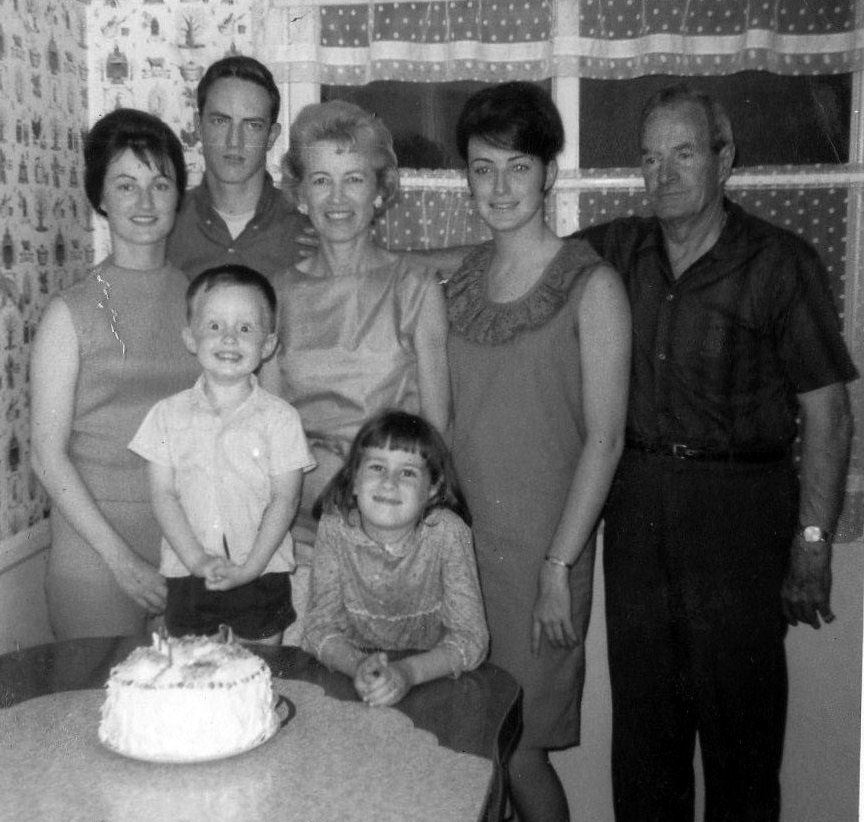
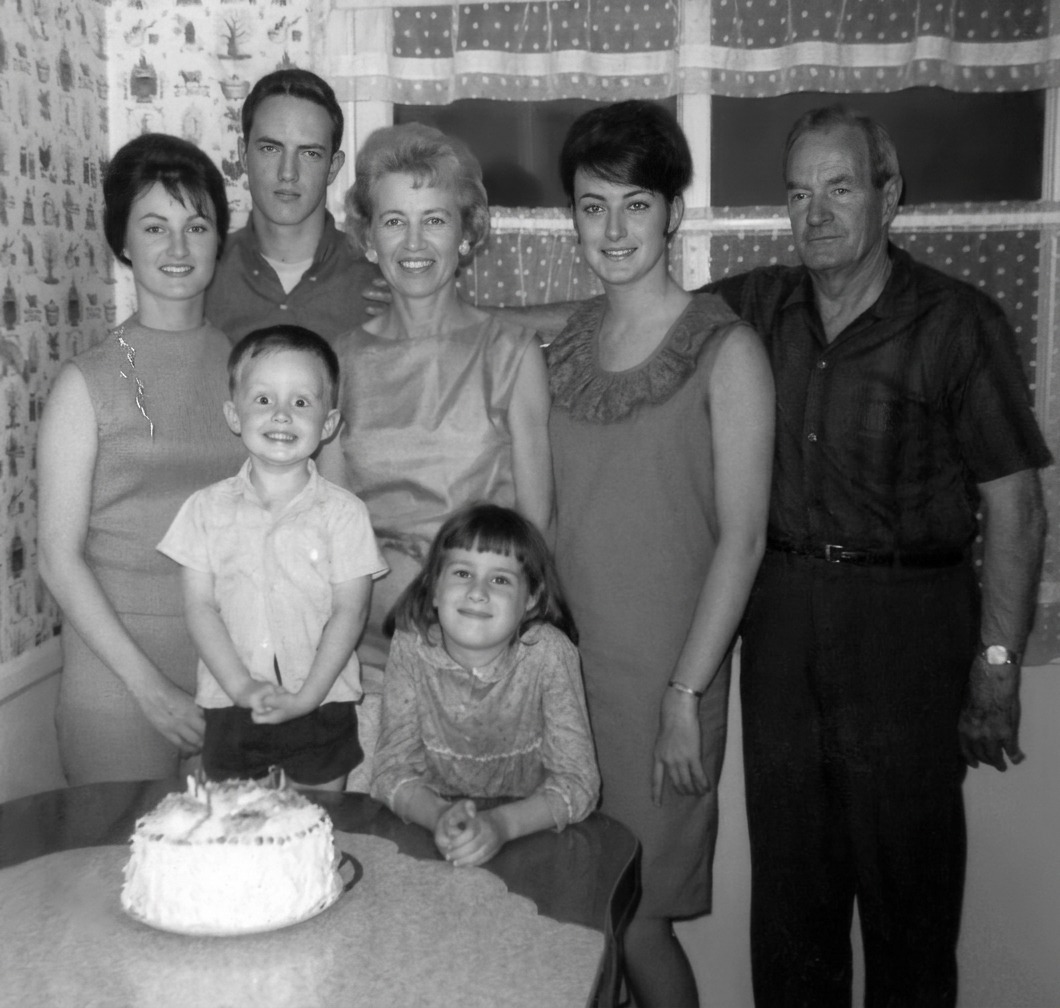
AI can reduce damage, balance tone, and prepare a respectful viewing copy; several drafts can be compared before anyone chooses one to print. Reconstructed eyes, teeth, or hair may feel wrong despite technical polish. Keep changes conservative and let the family decide what remains recognizable. Keep the untouched scan beside the result.
- 3 free previews a month
- No signup
- Ready in minutes
- One payment — nothing to cancel
How it works
Upload your photo
Drop in a scan or phone photo of the damaged print. Your original is never touched, and there's no signup.
Preview it free
See the restoration beside your photo in about a minute. Drag the slider and judge it for yourself before you spend a cent.
Keep what you love
Pay only for the results worth keeping, then download them in full resolution.
Preview your photo — freeWhat to know before restoring this photograph
A memorial photograph is chosen under pressure of feeling rather than quality — often a wallet print, a face cropped out of a group, or a phone copy of a copy, kept because it holds the person best rather than because it photographed well. Its condition is usually an afterthought to its meaning, and the restoration should keep that order.
The work of restoring one is therefore quiet work. The goal is not a flawless image but a clear, dignified copy that the people who are grieving recognise without hesitation — the same face, easier to see.
Practically, that starts with the earliest-generation version you can find. A print scanned directly nearly always outperforms a screenshot of a text-message photo, so ask around the family for the physical original before settling for a digital hand-me-down.
What the AI does dependably here: easing scratches, stains, and creases; steadying faded tone; lifting a dim image so the face is easier to see across a room. All of it is applied to a duplicate, and every draft can simply be declined — nothing about the process commits anyone to anything.
The caution sits in the features. Rebuilt eyes, teeth, or hair can be technically clean and still feel wrong to people who knew the face, and with a memorial image that feeling matters more than any measure of quality. Where damage reaches into the face, prefer the smallest possible repair, and be willing to leave a mark rather than accept a guess.
Never let the software invent a face the photograph does not actually contain. If the source is too small or too damaged to hold the person's features, an honest, softer image is the respectful result; a sharp invented likeness is a different person wearing their name.
Compare a few restrained drafts side by side with the original, and let more than one family member look. Different people carry different memories of the same face, and the version that satisfies them all is the one to print.
Keep the untouched scan permanently, whatever is chosen. The restoration is a reversible interpretation made for viewing; the scan is the record, and it remains exactly as it was.
The preview is free and returns in minutes, which leaves room to try a version, look slowly, and decide together without deadline pressure. Payment happens only when a copy is exported for the frame, the memorial card, or the wider family.
Questions about memorial photographs
Can you restore a photo of someone who has passed away?
Yes, and it's worth doing gently. AI can reduce damage, balance the tone, and prepare a clear, respectful copy for a service or a frame, and you can compare a few restrained drafts before choosing one. The honest caution is around faces: reconstructed eyes, teeth, or hair can look subtly wrong even when the technique is clean, so keep changes light and let the family decide what still looks like them.
What if the only photo we have is small or blurry?
It can still help, within limits. Scan the earliest, best copy you have rather than enlarging a screenshot, and AI can gently improve tone and clarity so a modest source is easier to view and print. Where the picture simply doesn't hold the detail, keep the restoration conservative—a familiar, believable likeness matters more than a sharpened one that no longer feels like them.
How much does a restoration cost?
The preview is free. Full-resolution downloads are $7.99 per photo, and the rate drops the more you restore — down to $4.49 each on the largest batches. Each photo includes up to three restoration attempts, and downloads stay available for 30 days.
Is my original scan safe?
Yes. The restoration is a separate file, so your scan stays exactly as it was. Keep the raw scan archived on its own; a fragile, moldy, or flaking print should be handled and captured carefully before you ever upload it.
Can I print the restored version?
Yes, if the file has enough pixels for the intended size. Inspect faces and fine details before printing, and keep the higher-resolution master separate from the print export.
See what your photo can become
Upload it, preview the restoration free, and keep only the result that feels right.
Preview your photo — free- 3 free previews a month
- No signup
- Ready in minutes
- One payment — nothing to cancel