Guide / restore old photos without photoshop
How to Restore Old Photos without Photoshop
Compare the preview at full image size and close up, checking eyes, fingers, text, jewelry, and repeating patterns for invented details. Keep the raw scan, export the edited copy under a new name, and label major reconstructions so relatives do not mistake them for untouched records. Keep the untouched scan beside the result.
- 3 free previews a month
- No signup
- Ready in minutes
- One payment — nothing to cancel
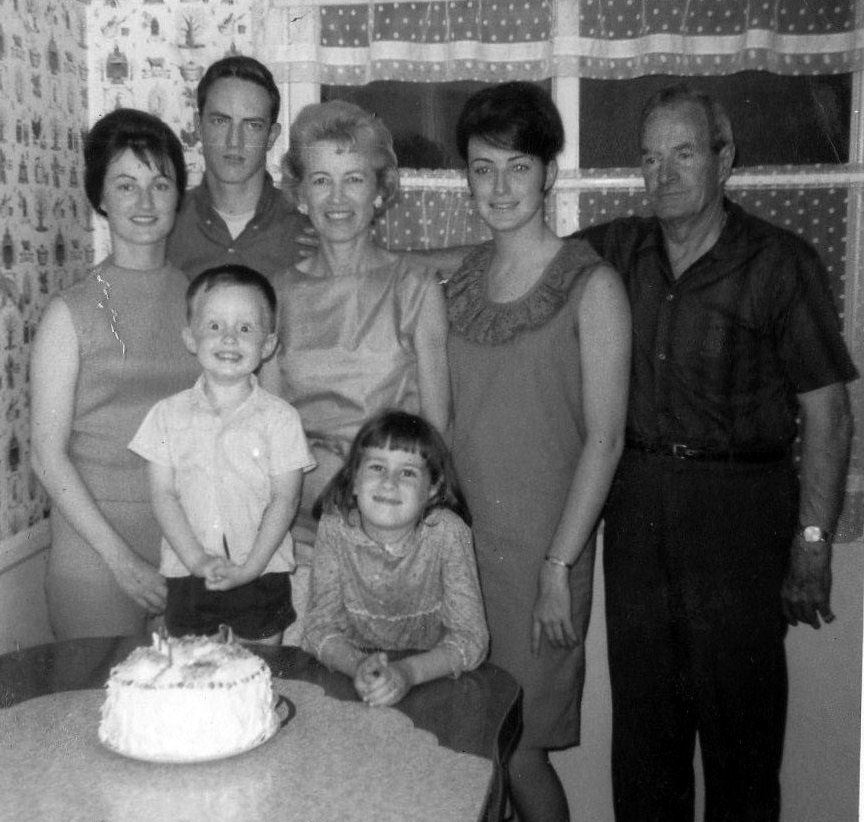
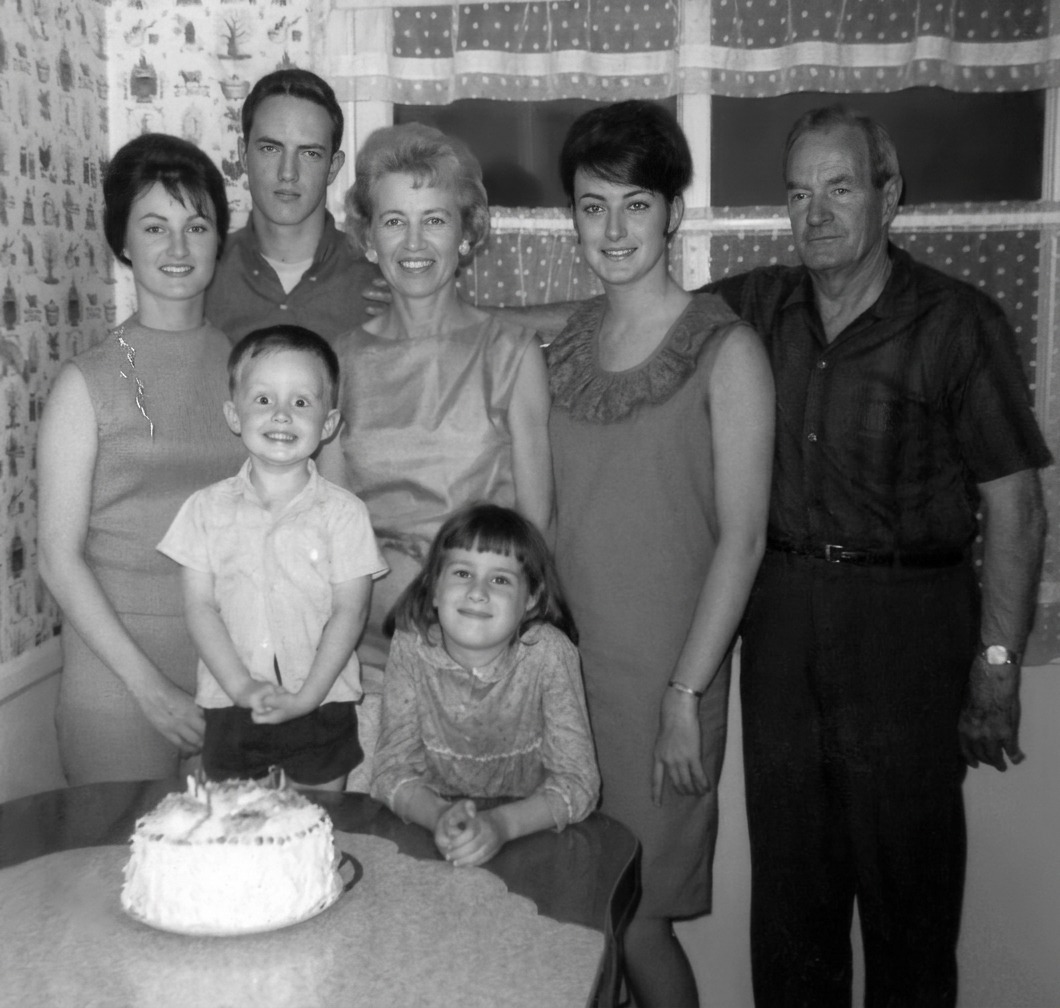
How it works
Upload your photo
Drop in a scan or phone photo of the damaged print. Your original is never touched, and there's no signup.
Preview it free
See the restoration beside your photo in about a minute. Drag the slider and judge it for yourself before you spend a cent.
Keep what you love
Pay only for the results worth keeping, then download them in full resolution.
Preview your photo — freeA practical, reversible workflow
A strong result depends more on the source than on aggressive processing. Examine restoring photos without Photoshop for this pattern: A browser-based AI editor can handle common fading, scratches, dust, and contrast without layers or specialist retouching tools. Save that observation with the file so later viewers understand why particular repairs were made.
Begin with the best surviving source: a negative before a print, an original print before a photocopy, and a scan before a phone screenshot. This matters because an edit must respond to how the image was made and aged, not impose generic sharpness on every surface.
Describe the main problem plainly and avoid asking for changes unrelated to restoration. A narrow request makes it easier to judge what the system altered. Check the file at 100 percent for focus, clipped highlights, and glare before returning the original to storage.
Compare the preview at full image size and close up, checking eyes, fingers, text, jewelry, and repeating patterns for invented details. If the first preview changes a familiar feature, revise the request or keep that region closer to the source.
A browser-based editor can lift fading, rebuild contrast, and clear scratches and dust in minutes, with no layers or masking to learn. Noting which areas were rebuilt keeps a clear line between surviving evidence and a plausible visual completion.
Decide in advance what success means for restoring photos without Photoshop: clearer viewing, a small family print, or a documented research copy. The intended use sets sensible limits on smoothing, cropping, and reconstruction. It also makes it easier to reject an attractive draft that weakens a familiar or historically useful detail.
Storage after editing still matters for restoring photos without Photoshop. Place stable prints in photo-safe enclosures, separate them from acidic album pages when that can be done without force, and keep a second digital backup away from the first. The restoration is easier to repeat than the family identification attached to it.
A useful handoff for restoring photos without Photoshop names the visible starting condition—a browser-based AI editor can handle common fading, scratches, dust, and contrast without layers or specialist retouching tools. Save the raw capture, restored master, practical sharing copy, and identification notes together. That package lets another relative distinguish surviving evidence from the choices made in this version.
Try the free preview before committing to anything: upload your scan and watch a browser-based AI editor lift fading, dust, and scratches with no software to install or skills to learn. Look it over at full size and up close. If the fix is worth keeping, you pay only for the results you export — and walk away with a cleaner photo and your original scan still safely in hand.
Questions about restoring photos without Photoshop
What's the best way to restore old photos without Photoshop?
Start from the best source you have — a negative over a print, a print over a screenshot — make a clean high-resolution scan, then ask a browser-based AI editor for a focused fix. It handles common fading, scratches, dust, and contrast with no layers or retouching skills required. Compare the result closely, keep your raw scan, and save the edit under a new name so the original stays untouched.
Do I need any editing skills or software to use it?
No. A browser-based AI editor does the retouching for you, so there are no layers, masks, or tools to learn — you upload a scan and describe the problem plainly. Keeping the request narrow, like fixing fading or a scratch rather than restyling the photo, makes it easy to judge exactly what the edit changed.
How much does a restoration cost?
The preview is free. Full-resolution downloads are $7.99 per photo, and the rate drops the more you restore — down to $4.49 each on the largest batches. Each photo includes up to three restoration attempts, and downloads stay available for 30 days.
What happens to the photo I upload?
It becomes the reference for a new restored copy and is left unchanged. Your job is to keep that original scan safe and labeled so you can always see what was real versus what the AI rebuilt.
See what your photo can become
Upload it, preview the restoration free, and keep only the result that feels right.
Preview your photo — free- 3 free previews a month
- No signup
- Ready in minutes
- One payment — nothing to cancel