Guide / ai vs manual photo restoration
AI vs. Manual Photo Restoration
An AI preview helps reveal whether the source contains enough information and can also serve as a brief when commissioning detailed manual work. Compare methods on accuracy, time, repeatability, and the importance of the picture—not on a promise that any method can recover absent evidence. Keep the untouched scan beside the result.
- 3 free previews a month
- No signup
- Ready in minutes
- One payment — nothing to cancel
How it works
Upload your photo
Drop in a scan or phone photo of the damaged print. Your original is never touched, and there's no signup.
Preview it free
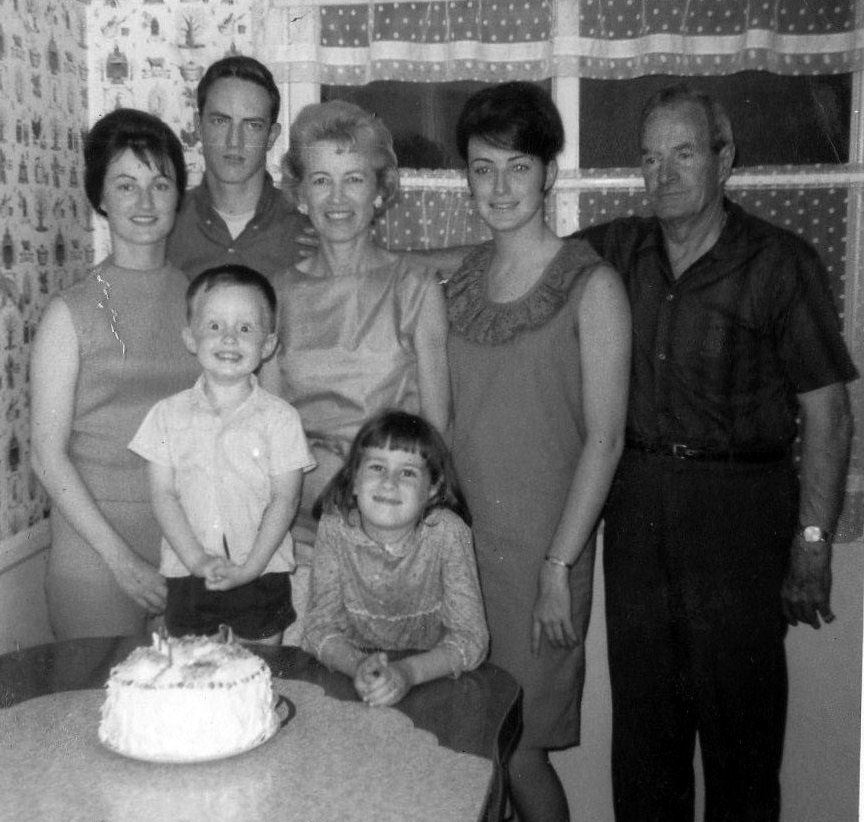
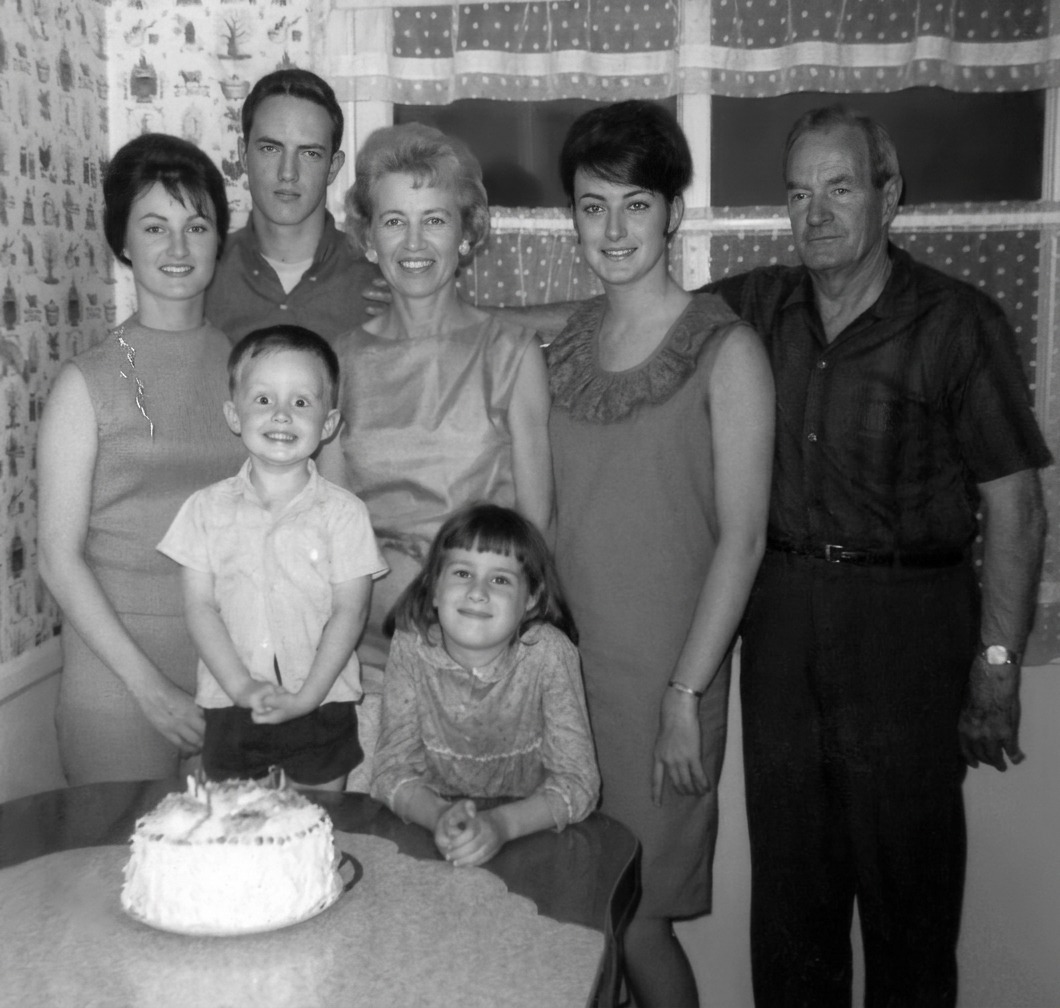
See the restoration beside your photo in about a minute. Drag the slider and judge it for yourself before you spend a cent.
Keep what you love
Pay only for the results worth keeping, then download them in full resolution.
Preview your photo — freeA practical, reversible workflow
Start by separating the condition of the physical object from the appearance of its digital copy. For AI versus manual photo restoration, that means noticing AI restoration produces a rapid draft for common visual damage, while manual retouching offers deliberate control over each repaired region and interpretation. This first inventory prevents a dramatic edit from hiding evidence that could matter later.
Narrow scratches, moderate fading, noise, and batch previews suit automation; a face missing across a large tear benefits from careful human judgment. Understanding that mechanism sets realistic priorities: first restore legibility, then consider cosmetic cleanup that does not erase useful context.
Neither digital method repairs the physical artifact. Mold, stuck glass, flaking emulsion, or valuable originals call for a conservator before scanning. Make two backups before editing, and never overwrite the capture that records the object as found.
An AI preview helps reveal whether the source contains enough information and can also serve as a brief when commissioning detailed manual work. Work in stages when several problems overlap, comparing each draft with the raw file before moving on.
AI is the quick, repeatable option for routine damage, while manual retouching earns its time on the faces and heirlooms that matter most; where the original still holds the detail, either method can surface it. This limit is not a failure of scanning; it is an honest boundary wherever source information no longer exists.
When several copies survive, compare them before editing AI versus manual photo restoration. One may preserve faces while another retains an uncropped border or stronger background. A careful composite can draw on genuine evidence from both, but record that method explicitly instead of presenting the result as a single untouched exposure.
Write down where AI versus manual photo restoration came from while the answer is available. A box label, album position, donor, or penciled nickname may later resolve an uncertain date. Embed a short caption in the file record rather than adding permanent text across the restored picture itself.
A useful handoff for AI versus manual photo restoration names the visible starting condition—AI restoration produces a rapid draft for common visual damage, while manual retouching offers deliberate control over each repaired region and interpretation. Save the raw capture, restored master, practical sharing copy, and identification notes together. That package lets another relative distinguish surviving evidence from the choices made in this version.
Use the free preview to see where your photo lands. Upload the scan and let AI take a fast pass at the common damage — it shows in seconds whether the source holds enough to work with. If the draft is good enough, you pay only for the copies you export; if it isn't, you've got a clear brief to hand a manual retoucher. Either way you leave knowing which method actually fits this picture.
Questions about AI versus manual photo restoration
What's the best way to restore an old photo — AI or a professional retoucher?
For common damage — light scratches, fading, noise, a quick look across a batch — an AI preview is fast and often enough, and it tells you whether the source even holds the detail you want back. For a face lost across a big tear or a picture that really matters, a skilled human retoucher gives you control an automated pass can't. Neither can recover detail the original no longer contains; the AI draft just makes a good brief if you decide to hire that work out.
Is AI restoration as good as hiring a professional?
It depends on the photo. For everyday damage AI can match a lot of routine retouching in seconds and at a fraction of the cost. For heavy loss, delicate faces, or an heirloom you can't risk, a human's judgment still wins — and you can hand them the AI preview as a starting reference. Try the free preview first to see which camp your photo falls into.
How much does a restoration cost?
The preview is free. Full-resolution downloads are $7.99 per photo, and the rate drops the more you restore — down to $4.49 each on the largest batches. Each photo includes up to three restoration attempts, and downloads stay available for 30 days.
Does the restorer edit my original photo?
No. You upload a digital copy and the AI works only on that copy — the physical photo and your original scan are never altered. Store the untouched scan separately so you always have it to compare against.
Can I print the restored version?
Yes, if the file has enough pixels for the intended size. Inspect faces and fine details before printing, and keep the higher-resolution master separate from the print export.
See what your photo can become
Upload it, preview the restoration free, and keep only the result that feels right.
Preview your photo — free- 3 free previews a month
- No signup
- Ready in minutes
- One payment — nothing to cancel